Hello all!
If you read about our recent MCP Server launch for Exasol (Exasol MCP Server: Contextual AI for Databases) then you might be wondering - how do I run this in a local environment instead of relying on public LLM access (such as via Claude)? This is a critical requirement for customers that have high security and governance requirements and want to prevent their data from moving outside of their environment.
The simple answer is YES - you can do this!
We will use 4 components to accomplish this:
- Ollama (https://ollama.com/) is a platform for hosting and serving LLMs locally - you can choose from a variety of different publicly available models
- Open WebUI (https://openwebui.com/) is a self-hosted LLM wrapper that provides a chat interface which operates completely on your own environment
- Exasol MCP Server (GitHub - exasol/mcp-server: Exasol MCP server. Provides knowledge about the Exasol database to an LLM through the Model Context Protocol.)
- mcpo is a MCP proxy service offered by Open WebUI that allows MCP servers to work with Open WebUI agents
You’ll note the theme here - locally hosted services.. that’s the security and control we’re looking for.
Set up steps:
- Install and configure Ollama and download a model to get started ( Download Ollama on Linux )
- Install and configure Open WebUI (⏱️ Quick Start | Open WebUI) - we recommend using the python install method (as opposed to Docker) as that makes networking simpler. After following the linked instructions you should have an open webui server running locally that you can access at http://localhost:8080/
- Connect your Open WebUI instance to your local Ollama instance ( 👉 Starting With Ollama | Open WebUI )
- Install mcpo on your local/target machine ( 🛰️ MCP Support | Open WebUI )
- Follow the Exasol MCP instructions to create a local file to store your connection details (GitHub - exasol/mcp-server: Exasol MCP server. Provides knowledge about the Exasol database to an LLM through the Model Context Protocol.)
- Run the Exasol MCP server via mcpo - we are going to pass the environment variables in the command instead of using a config file as this keeps the process simpler
uvx mcpo --port 8000 --env EXA_DSN=<exasol-db-dsn> --env EXA_USER=<exasol username> --env EXA_PASSWORD=<exasol password> --env EXA_MCP_SETTINGS=<link-to-exasol-mcp-settings file> -- uvx exasol-mcp-server
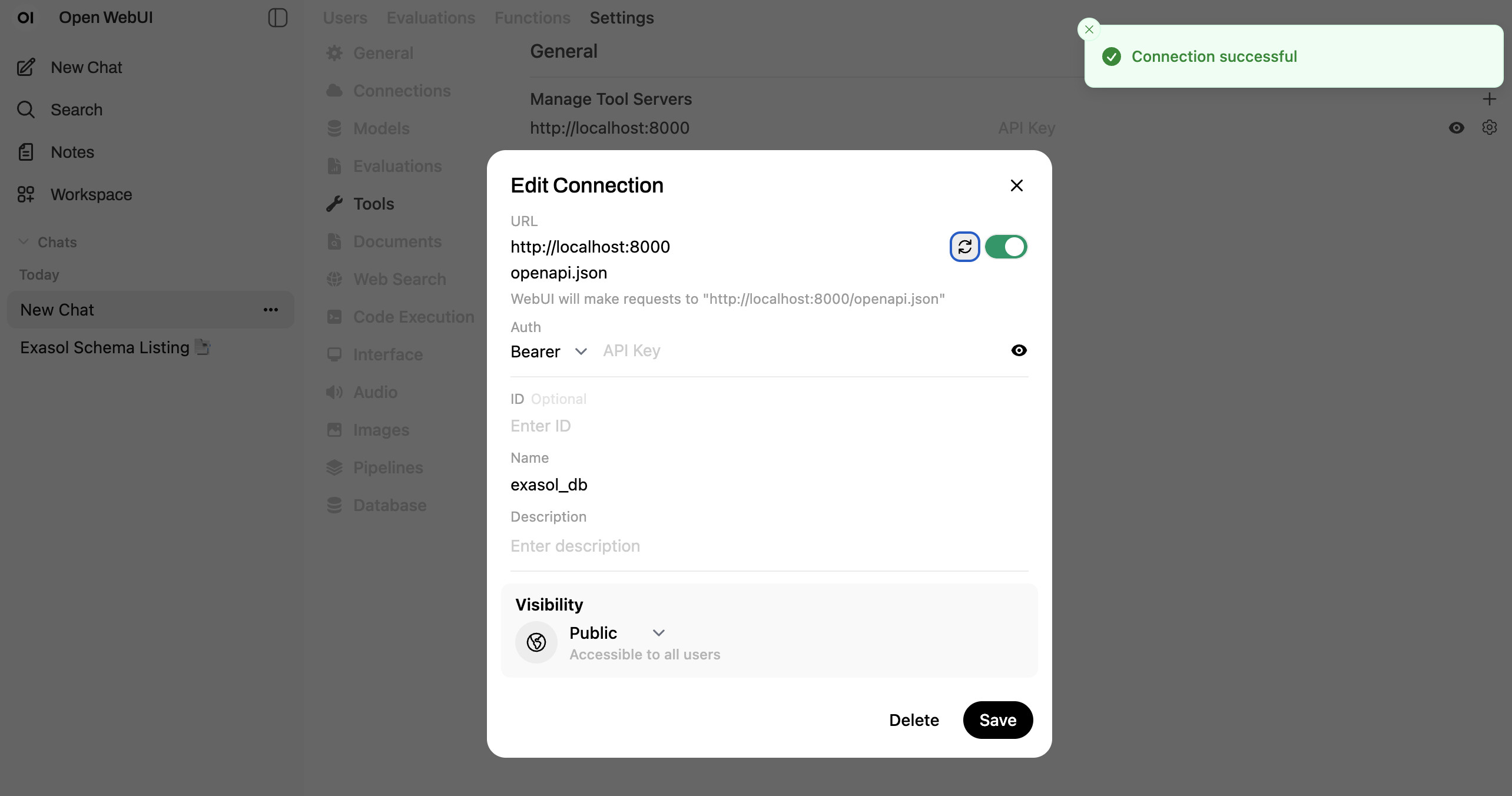
- Configure the MCP tool in the Open WebUI settings panel (note - this is the user specific settings - we will also set up the tool in the admin settings next)

- Configure the MCP tool in the Open WebUI Admin panel
- Check that the Exasol MCP server toolset is available in the chat UI

- You are now able to access your Exasol database! Try out a few prompts such as:
- “List my Exasol schemas”
- “Tell me about the data in my Exasol database”